Call Us: +91-7042640351, 9891868324

10 Solutions for an HP Laptop Getting Stuck on HP Logo Screen
By Admin | 28 Jul 2025
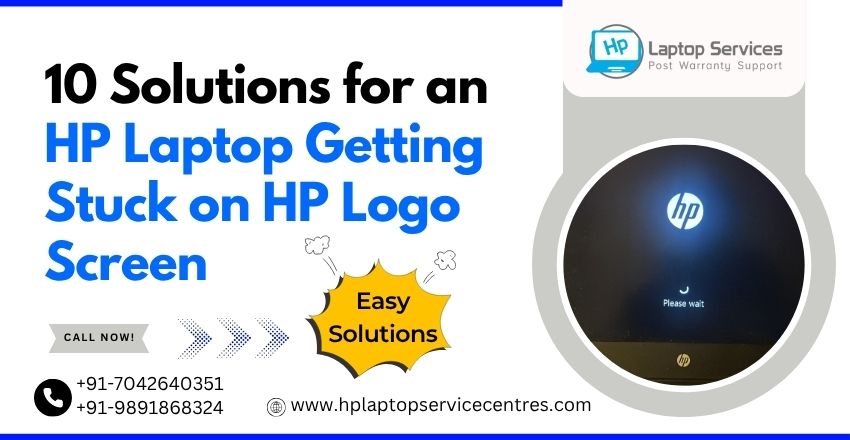
Imagine powering up your HP laptop, only to find it frozen on the HP logo screen—no loading dots, no login screen, just the logo. It’s a frustrating and common issue that many HP users face. Whether you're trying to meet a work deadline, attend an online class, or simply browse, this problem can halt your productivity.
If you're dealing with the issue of an HP Laptop Getting Stuck on HP Logo Screen, don't panic. There are several potential causes—from minor glitches to deeper system errors—and thankfully, a range of solutions.
In this blog, we’ll guide you through 10 proven methods to resolve this issue effectively. And if none work, don’t worry—HP Laptop Service Centers offers out-of-warranty laptop repair at your doorstep.
1. Perform a Hard Reset
Sometimes the simplest solution works best. A hard reset clears temporary data and resets the hardware's state.
How to Do It:
- Turn off your HP laptop.
- Disconnect all external devices (USBs, chargers, etc.).
- Hold the power button for 15 seconds.
- Reconnect the battery/power adapter and restart.
This often fixes minor glitches causing the laptop to freeze at the startup logo.
2. Boot into Safe Mode
If your HP laptop is getting stuck on the HP logo screen, try booting into Safe Mode to isolate the issue.
Steps:
- Power off your laptop.
- Turn it on and immediately press Esc or F8 repeatedly.
- Choose “Startup Settings” > “Enable Safe Mode.”
If the laptop boots in Safe Mode, the issue likely stems from a recently installed driver or software.
3. Disconnect External Devices
Faulty peripherals such as USB drives, printers, or external hard drives can prevent your system from booting properly.
Solution:
- Unplug all external hardware.
- Restart your laptop and observe if it goes beyond the logo screen.
This is especially effective if the issue began after connecting a new device.
4. Run HP’s Diagnostic Tools
HP laptops come with built-in diagnostics tools that can identify hardware issues like memory failures or hard disk problems.
Steps:
- Turn off the laptop.
- Turn it on and immediately press F2.
- Choose “System Diagnostics.”
- Run a full hardware test.
If any issue is detected, the tool will recommend the necessary steps to fix it.
5. Reset BIOS Settings to Default
Incorrect BIOS settings can prevent your system from completing the boot process.
How to Reset BIOS:
- Restart the laptop and press F10 repeatedly to enter BIOS.
- Once inside, press F9 to load defaults.
- Press F10 to save and exit.
Your laptop will reboot with default BIOS configurations, which can often solve the stuck screen issue.
6. Check Boot Priority
If your boot sequence is misconfigured, the system might get confused during startup, causing it to freeze on the logo.
Solution:
- Go to BIOS Setup (F10 at startup).
- Navigate to Boot Options.
- Ensure the internal hard disk is at the top of the boot priority list.
Save and exit BIOS. If the boot order was incorrect, fixing it may allow your HP laptop to boot normally.
7. Use Startup Repair (Windows Recovery)
Windows includes an automatic startup repair option that can fix boot-related issues.
Steps:
- Create a bootable USB with Windows 10/11 installation media.
- Insert it into your laptop and boot from it.
- Select “Repair Your Computer” > “Troubleshoot” > “Startup Repair.”
Let the system run the repair process. It may take some time but often resolves issues without data loss.
8. System Restore to an Earlier Point
If you recently installed updates or drivers that caused your HP laptop to get stuck on the HP logo screen, System Restore can roll back changes.
Process:
- Boot from recovery media or enter Advanced Startup Options.
- Choose “System Restore.”
- Select a restore point before the issue started.
It’s a safe method that won’t delete your personal files.
9. Check for Hard Drive or SSD Failure
Storage drive issues are one of the more serious causes behind this problem. A failing HDD/SSD can halt the startup sequence.
Signs of Drive Failure:
- Clicking or grinding noises
- Frequent freezing before or during boot
- HP diagnostics detect drive issues
If the drive is faulty, it must be replaced. At HP Laptop Service Centers, we provide doorstep SSD/HDD replacement and OS reinstallation services across all major cities.
10. Reinstall Windows (Last Resort)
If none of the above solutions work, you may need to reinstall Windows. This step erases all data, so it's advisable only if nothing else works.
How to Reinstall:
- Boot using a Windows installation USB.
- Select “Install Now.”
- Choose “Custom Install” and format the primary drive.
If you're uncomfortable performing a clean install yourself, our certified technicians can handle it safely at your location.
Common Causes Behind HP Logo Screen Freeze
Understanding the root causes of this issue can help you prevent it in the future:
- Corrupt boot files
- Incompatible or broken drivers
- Failed Windows updates
- BIOS misconfiguration
- Malware or ransomware attacks
- Damaged system files
- Hardware failures (RAM, HDD, motherboard)
Regardless of the cause, our experienced team can quickly diagnose and resolve the problem.
Expert Out-of-Warranty Repair – We Come to You!
At HP Laptop Service Centers, we understand the frustration of unexpected technical problems—especially when your laptop is out of warranty. That’s why we offer:
- On-site Laptop Repair Services
- Affordable Pricing with No Hidden Costs
- Genuine Spare Parts
- Pickup and Drop Facility (if required)
- Same-Day Repairs for Common Issues
We service a wide range of HP laptop models and offer professional support across Delhi, Noida, Gurgaon, Greater Noida, Ghaziabad, Faridabad, Mumbai, Pune, Kolkata, and more.
Book Your Service Today
Call: +91-7042640351 | +91-9891868324
Preventive Tips to Avoid Startup Issues
To avoid future instances of your HP laptop getting stuck on the HP logo screen, follow these maintenance tips:
- Install Windows updates only after checking their stability
- Keep antivirus software updated to prevent malware
- Avoid force shutdowns unless necessary
- Back up your data regularly
- Don’t overload your startup with unnecessary software
- Clean the laptop regularly and avoid overheating
Routine health checks and updates can save you time, money, and frustration in the long run.
Final Thoughts
The issue of an HP Laptop Getting Stuck on HP Logo Screen can be disruptive, but it’s often solvable with a little patience and the right troubleshooting steps. Whether it’s a driver conflict, BIOS error, or hardware problem, the 10 solutions outlined above offer a structured way to diagnose and resolve the issue.
Still stuck? Don’t risk data loss or hardware damage with guesswork. Trust the experts at HP Laptop Service Centers for quick, affordable, and reliable repair services.
Cities We Serve: Delhi, Noida, Gurgaon, Greater Noida, Ghaziabad, Faridabad, Mumbai, Pune, Kolkata
We bring the solution to your doorstep—fast, affordable, and hassle-free.
Recent Post



Looking For A Fast & Reliable Laptop Repair Service
We have professional technicians, fast turnaround times and affordable rates. Book Your Repair Job Today!
We specialize in all types of laptop services and provide reliable and quality door step service to our clients