Call Us: +91-7042640351, 9891868324

7 Common Touchscreen Laptop Problems and How to Fix Them Easily
By Admin | 27 Oct 2025
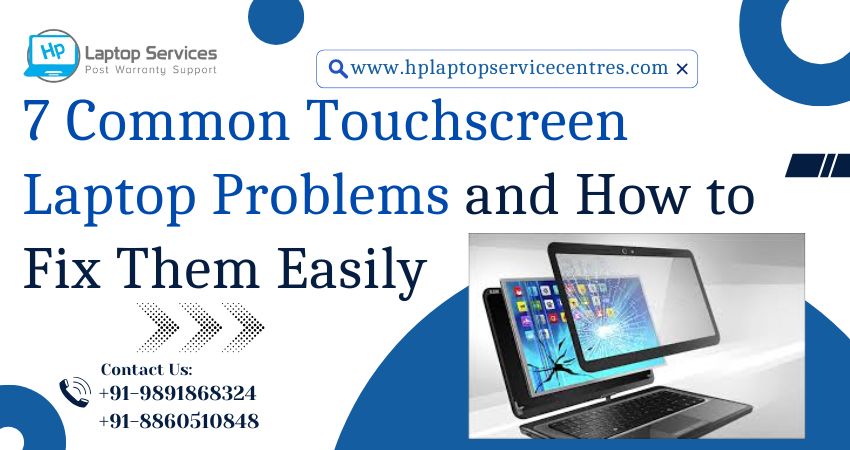
Touchscreen laptops have made computing faster, smoother, and more interactive. However, like all technologies, they’re not immune to glitches. Over time, even premium HP touchscreen laptops can face issues such as unresponsiveness, ghost touches, or calibration errors. The good news? Most touchscreen laptop problems can be fixed with a few simple steps—without needing a major repair.
If your laptop’s touch function is acting up, this guide will help you identify and fix the 7 most common touchscreen laptop problems.
7 Common Touchscreen Laptop Problems Quick Fixes
1. Touchscreen Not Responding at All
Problem:
The screen completely stops responding to touch inputs, even though your mouse or keyboard works fine.
Possible Causes:
- Disabled touchscreen driver
- Software update conflicts
- Hardware malfunction
Quick Fixes:
- Press Windows + X ? Device Manager ? Human Interface Devices.
- Right-click on HID-compliant touchscreen and select Enable Device.
- If it’s already enabled, right-click and choose Update driver.
- Restart your laptop and check if the touch starts working.
If the problem persists, it could be a hardware issue with the screen’s digitizer. You can contact HP Laptop Service Centers for professional touchscreen replacement at affordable rates and quick doorstep support.
2. Touchscreen Works Intermittently
Problem:
The touchscreen works sometimes and stops at random intervals.
Possible Causes:
- Power management settings disabling the touchscreen
- Outdated or corrupted drivers
- Static buildup on the screen surface
Quick Fixes:
- Go to Device Manager ? HID-compliant touchscreen ? Properties ? Power Management.
- Uncheck “Allow the computer to turn off this device to save power.”
- Clean the screen using a soft microfiber cloth (no harsh chemicals).
- Reboot the system.
If the issue persists, reinstall the touch driver using HP Support Assistant, or simply book an appointment or visit your nearest HP Laptop Service Center for expert diagnostics.
3. Ghost Touches or Automatic Tapping
Problem:
The screen registers random touches even when you’re not touching it—this is known as ghost touching.
Possible Causes:
- Moisture, dust, or oil on the screen
- Faulty digitizer or internal cable issue
- Electrical interference
Quick Fixes:
- Turn off the laptop and clean the screen thoroughly.
- Disconnect any USB devices, chargers, or accessories.
- Restart the laptop and observe if ghost touches continue.
- If the issue persists, recalibrate the touchscreen: Open Control Panel ? Hardware and Sound ? Tablet PC Settings ? Calibrate.
If none of these steps work, a touchscreen panel replacement might be necessary. The certified experts at HP Laptop Service Centers provide out-of-warranty touchscreen replacements for all HP models and other laptop brands.
4. Touchscreen Misalignment or Calibration IssuesProblem:
You touch one part of the screen, but the pointer registers at a different location.
Possible Causes:
- Calibration drift
- Outdated display driver
- Touch sensitivity imbalance
Quick Fixes:
- Go to Control Panel ? Tablet PC Settings ? Calibrate the screen for pen or touch input.
- Follow the on-screen instructions to recalibrate.
- Restart your system to apply changes.
If this happens frequently, it may indicate sensor degradation, which can be fixed by professional recalibration or component replacement at an HP service center.
5. Screen Flickering or Flashing While Touching
Problem:
When you touch the screen, it flickers, flashes, or the brightness fluctuates.
Possible Causes:
- Outdated graphics driver
- Loose internal display cable
- Power supply fluctuations
Quick Fixes:
- Update your graphics driver through Device Manager ? Display adapters.
- Disable adaptive brightness: Go to Settings ? System ? Display ? Brightness & Color and turn it off
- If flickering persists even after updates, it could be a hardware connection issue that needs professional repair. Our technicians at HP Laptop Service Centers can quickly diagnose and fix display flickering or cable faults at your doorstep.
6. Touchscreen Freezes or Lags During Use
Problem:
The touchscreen responds slowly, freezes, or stops after prolonged use.
Possible Causes:
- Heavy background applications
- Insufficient RAM or overheating
- Firmware conflicts
Quick Fixes:
- Close unnecessary apps and restart the device.Update Windows and all HP drivers.
- Perform a hardware diagnostics test using HP PC Hardware Diagnostics (UEFI).
- Check for overheating—ensure the cooling fan is working properly.
If the lag continues, it may be due to internal heat damage or motherboard faults. HP-certified engineers can help restore smooth performance with affordable component-level repair.
7. Touchscreen Completely Disabled After Windows Update
Problem:
After a Windows update, your touchscreen disappears from Device Manager or doesn’t respond.
Possible Causes:
- Incompatible update or missing driver
- BIOS settings changed
- System file corruption
Quick Fixes:
- Open Device Manager ? Action ? Scan for hardware changes.
- Reinstall or roll back the touchscreen driver.
- Run Windows Troubleshooter ? Hardware and Devices.
- If needed, perform a System Restore to a date before the update.
If you’re not comfortable performing system rollbacks, reach out to HP Laptop Service Centers for expert help with software reinstallation and driver recovery.
Pro Tips to Keep Your Touchscreen Laptop Healthy
- Always clean your screen with a dry microfiber cloth.
- Avoid pressing the screen too hard or with sharp objects.
- Keep your system updated with the latest HP drivers.
- Use a surge protector to prevent electrical damage.
- Don’t expose your laptop to heat, dust, or moisture.
Regular maintenance can significantly extend the life of your touchscreen and prevent most common issues.
Why Choose HP Laptop Service Centers?
When DIY fixes don’t work, it’s best to trust professionals. HP Laptop Service Centers offers:
- Doorstep Laptop Repair Services – quick and convenient
- Affordable Rates – transparent pricing with no hidden costs
- Out-of-Warranty Support – repair even for expired warranty laptops
- Multi-Brand Repairs – Apart from HP, we handle Dell, Lenovo, Acer, ASUS, Apple, Samsung and other laptop brands.
- Fast Turnaround Time – get your laptop repaired in hours, not days
For expert touchscreen, battery, display, or motherboard repairs, call us at:
+91-7042640351, +91-9891868324
Final Thoughts
Touchscreen laptops are a modern convenience—but when they fail, productivity takes a hit. By identifying and fixing these 7 common touchscreen laptop problems, you can keep your device running smoothly. And if the issue requires expert attention, HP Laptop Service Centers is just a call away. Whether you need doorstep repair, genuine spare parts, or quick diagnostics, we’ve got you covered—affordably and efficiently.
Recent Post


Looking For A Fast & Reliable Laptop Repair Service
We have professional technicians, fast turnaround times and affordable rates. Book Your Repair Job Today!
We specialize in all types of laptop services and provide reliable and quality door step service to our clients