Call Us: +91-7042640351, 9891868324

7 Quick Solutions to Fix HP Laptop Screen Flickering Issues
By Admin | 03 Jul 2025
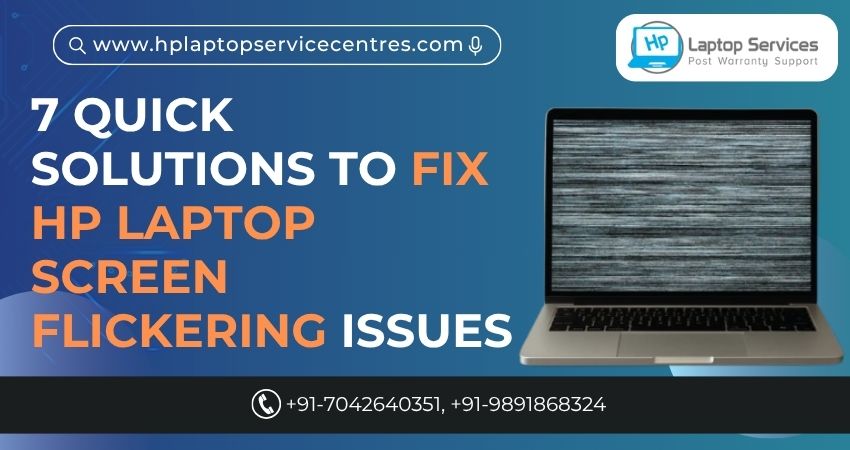
If your HP laptop screen is flickering, blinking, or showing unstable visuals, you're not alone. Screen flickering is one of the most common problems HP laptop users face—especially with aging or frequently used devices. While it may seem alarming, most flickering issues can be resolved quickly, either with simple adjustments or professional help.
In this blog, we’ll walk you through 7 quick solutions to fix HP laptop screen flickering issues, and explain when it’s best to call a reliable HP Laptop Service Center expert for support.
What Causes HP Laptop Screen Flickering?
Before we dive into the fixes, it's helpful to understand the root causes of screen flickering on HP laptops:
- Outdated or corrupted display drivers
- Incompatible applications
- Display refresh rate issues
- Loose screen cables or hardware problems
- Overheating or power supply fluctuations
- Graphics card failure
- Faulty display panel
Some of these issues are easy to solve at home, while others require expert handling.
Solution 1: Update Your Display Drivers
Screen flickering is often caused by a corrupted or outdated display driver.
Here’s how to update your driver:
- Press Windows + X and select Device Manager.
- Expand the Display adapters section.
- Right-click on your graphics adapter (such as Intel HD, AMD, or NVIDIA) and select the option to update the driver.
- Select Search automatically for drivers.
Solution 2: Adjust the Refresh Rate
A mismatched refresh rate can also cause flickering.
Steps to change it:
- Right-click on your desktop and select Display Settings.
- Scroll down and click Advanced display settings.
- Choose your display and click Display adapter properties.
- In the Monitor tab, choose an alternative refresh rate—commonly 60Hz or 75Hz.
Save the changes and see if the screen flickering is resolved.
Solution 3: Disable Problematic Apps or Background Programs
Some third-party software, especially heavy background apps like antivirus or video players, may clash with the display system.
Try this:
- Open Task Manager (Ctrl + Shift + Esc).
- Check which apps use high CPU or GPU resources.
- Disable or uninstall unnecessary software.
You can also try starting Windows in Safe Mode to see if the issue persists.If your screen works fine in Safe Mode, it’s likely that a software issue is behind the flickering.
Solution 4: Check for Windows Updates
Microsoft regularly releases patches to fix hardware conflicts. A quick update can sometimes solve screen issues.
To check:
- Navigate to Settings, open 'Update & Security,' and tap on 'Windows Update' to check for the most recent system updates.
- Click Check for Updates.
- Install any available updates and restart your laptop.
Solution 5: Test with an External Monitor
To rule out hardware issues like a faulty display or loose screen cable, try connecting your HP laptop to an external monitor.
- If the external display works fine, the issue likely lies with your screen, cable, or connectors.
- If both screens flicker, it’s probably a software or GPU issue.
This test can help you decide if professional help is needed.
Solution 6: Turn Off Hardware Acceleration
Some applications (like browsers or video players) use hardware acceleration, which may not be compatible with your GPU or drivers.
Example (for Chrome):
- Open Chrome > Settings > System.
- Toggle off "Use hardware acceleration when available".
- Restart Chrome.
You can do the same in other apps like Microsoft Office or Edge.
Solution 7: Seek Professional Repair Services
If none of the above solutions work, it’s time to consult experts. You might be dealing with:
- A failing graphics card
- Loose or damaged screen cable
- Inverter or backlight issues
- Defective screen panel
At HP Laptop Service Centers, we specialize in diagnosing and resolving such hardware-level problems. Whether it's a screen replacement, internal wiring fix, or GPU-level issue, our technicians are fully equipped to handle it all.
Read More: HP Laptop Screen is Flickering? Learn How to Troubleshoot and Fix it.
Why Choose Us?
When screen flickering goes beyond basic troubleshooting, you need a service partner you can trust.
Here’s why thousands choose us:
- Doorstep Service: No need to step out! We provide on-site laptop repair at your home or office—fast, safe, and convenient.
- Affordable Prices: We offer budget-friendly repair solutions with full transparency. No hidden charges, just honest service.
- Out-of-Warranty Support: Got an old HP laptop that's out of warranty? No problem. We specialize in out-of-warranty HP laptop repairs, offering genuine parts and long-lasting fixes.
- Skilled Technicians: Our certified professionals are trained to handle every HP model—from Pavilion to Envy, EliteBook to Spectre.
Need Help? Contact Us Today
Is your HP laptop screen still flickering? Don’t let it interfere with your productivity or learning. Let our experts help.
- Visit us: HP Laptop Service Centers
- Call now: +91-7042640351 | +91-9891868324
- Service Available: Mumbai, Delhi, Pune, Gurgaon, Noida, Ghaziabad & more
Final Thoughts
HP laptop screen flickering can be annoying, but it's usually fixable. Start with simple DIY solutions like driver updates, refresh rate adjustments, or disabling problematic apps. If that doesn’t help, don’t risk further damage—reach out to the professionals at HP Laptop Service Centers.
Read More: How to Fix Flickering Screen on HP Laptop Windows 11
Recent Post



Looking For A Fast & Reliable Laptop Repair Service
We have professional technicians, fast turnaround times and affordable rates. Book Your Repair Job Today!
We specialize in all types of laptop services and provide reliable and quality door step service to our clients