Call Us: +91-7042640351, 9891868324

Fix HP Omen Gaming Lag Issues: Performance Boost Guide 2025
By Admin | 18 Aug 2025
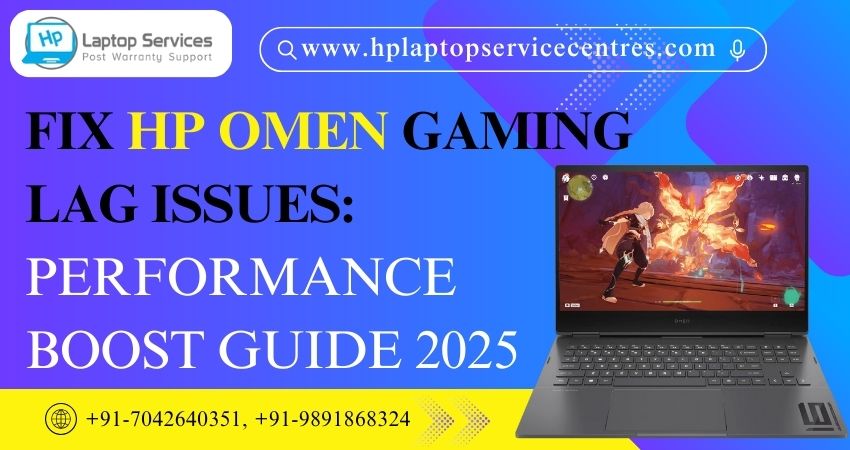
Gaming laptops like the HP Omen series are built for speed, graphics, and powerful performance. But over time, even the best machines can suffer from lag issues, frame drops, and stuttering gameplay, especially when running heavy titles. If your HP Omen has started slowing down or struggling during intense gaming sessions, you’re not alone.
In this comprehensive Performance Boost Guide 2025, we’ll walk you through the causes of lag in HP Omen laptops and provide step-by-step fixes to restore smooth gaming performance. Whether it’s software optimization, hardware maintenance, or professional repair, this guide has you covered.
Common Causes of Lag in HP Omen Gaming Laptops
Before jumping into solutions, it’s important to understand what causes your gaming laptop to slow down:
- Overheating – Gaming pushes the CPU and GPU to maximum capacity, generating heat. Poor cooling or dust buildup can throttle performance.
- Outdated Graphics Drivers – Old or corrupted drivers affect FPS and overall stability.
- Background Processes – Too many apps running in the background eat up RAM and CPU resources.
- Windows Updates & Bloatware – Unnecessary updates and pre-installed apps can slow down performance.
- Insufficient RAM or Storage – Modern AAA titles need higher RAM and SSDs for smooth gameplay.
- Malware or Viruses – Hidden programs can drain resources and cause system lag.
- Hardware Issues – Faulty cooling fans, damaged RAM, or GPU problems can impact performance.
Step-by-Step Fixes for HP Omen Gaming Lag
1. Optimize Graphics Drivers
- Go to NVIDIA GeForce Experience or AMD Radeon Software (depending on your GPU).
- Update to the latest drivers optimized for 2025 game releases.
- Use “Game Ready Drivers” for better FPS and smoother gameplay.
2. Adjust In-Game Settings
Even a powerful laptop has limits. To reduce lag:
- Lower Graphics Quality from Ultra to High/Medium.
- Disable V-Sync if you’re facing input delay.
- Reduce Shadows, Anti-Aliasing, and Ray Tracing for better FPS.
3. Control Overheating
HP Omen laptops have strong cooling, but dust and long gaming hours can cause heat buildup.
- Clean air vents and fans using compressed air.
- Use a cooling pad for better airflow.
- Adjust HP Omen Command Center to enable Performance Cooling Mode.
4. Free Up RAM & Storage
- Uninstall unnecessary apps and bloatware.
- Disable startup programs via Task Manager.
- Use an SSD upgrade if your games are on a slower HDD.
- Keep at least 20% storage free for smooth system performance.
5. Enable High-Performance Mode
- Go to Windows Power Settings ? Choose High Performance or Ultimate Performance mode.
- In HP Omen Command Center, switch from Balanced to Performance Mode.
6. Scan for Malware & Viruses
Gaming laptops are also vulnerable to hidden malware. Run a full scan using Windows Defender or any trusted antivirus. Remove threats to free up system resources.
7. Update Windows & BIOS
Ensure you’re running the latest Windows 11 updates.
Check HP’s official site for BIOS and firmware updates for your Omen model.
8. Upgrade Hardware (if needed)
- Add extra RAM (16GB or 32GB recommended for gaming in 2025).
- Switch to a 1TB NVMe SSD for faster game loading.
- Replace thermal paste every 2–3 years for better heat management.
When to Seek Professional Repair
Sometimes, software fixes aren’t enough. If you notice these issues, it’s time to consult experts:
- Sudden shutdowns during gameplay.
- Loud fan noise or overheating despite cleaning.
- Persistent lag even after optimization.
- GPU or display glitches (artifacts, screen tearing).
At HP Laptop Service Centers, we provide:
- Doorstep laptop repair – No need to visit a service center, we come to you.
- Affordable rates – Get professional repair without breaking your budget.
- Genuine spare parts & upgrades – Ensuring long-lasting performance.
Contact us today at +91-7042640351 | +91-9891868324.
Additional Tips to Keep Your HP Omen Running Smooth
- Restart your laptop regularly to clear memory.
- Keep games updated with patches that improve optimization.
- Avoid running multiple heavy apps (like Chrome with many tabs) while gaming.
- Backup important data before making system changes.
- Clean the laptop physically every 3–4 months to avoid dust buildup.
Why Choose HP Laptop Service Centers?
Unlike local repair shops, our team specializes in HP laptops, including the Omen gaming series. With years of experience, we know the exact issues gamers face and provide quick, reliable fixes.
- Certified engineers with gaming laptop expertise
- Quick diagnosis & same-day service (where possible)
- 100% transparency in pricing and repairs
- Customer support that values your time
Final Thoughts
Your HP Omen gaming laptop is a powerhouse designed for next-level gaming, but like any machine, it needs regular maintenance and optimization. By updating drivers, managing performance settings, and keeping the system clean, you can fix lag issues and enjoy smooth gameplay in 2025 and beyond.
If you’ve tried everything and still face lag, it’s time to let the professionals step in. At HP Laptop Service Centers, we offer affordable repairs, doorstep service, and out-of-warranty support. Along with HP Omen, we also handle multi-brand laptop repairs including Lenovo, Dell, Samsung, Apple, Acer, and Asus—ensuring your gaming never stops.
We provide doorstep laptop repair services across India, covering major cities such as Mumbai, Pune, Ghaziabad, Faridabad, Gurgaon, Delhi, Kolkata, and many more locations.
Contact: +91-7042640351 | +91-9891868324
Website: HP Laptop Service Centers
Get your HP Omen back in action and game without limits!
Recent Post





Looking For A Fast & Reliable Laptop Repair Service
We have professional technicians, fast turnaround times and affordable rates. Book Your Repair Job Today!
We specialize in all types of laptop services and provide reliable and quality door step service to our clients