Call Us: +91-7042640351, 9891868324

HP EliteBook Wi-Fi Not Connecting? Here's What You Can Do
By Admin | 15 Jul 2025
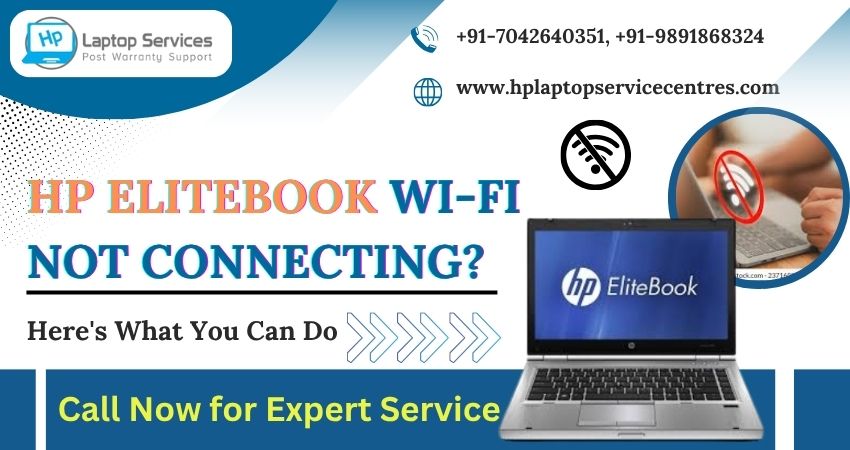
Is your HP EliteBook struggling to connect to Wi-Fi? Whether it’s not detecting your network, disconnecting randomly, or showing limited access, these issues can interrupt your workflow and create unnecessary frustration.
But don’t worry—We are here to help! In this blog, we’ll walk you through practical solutions to resolve the Wi-Fi connectivity issues in your HP EliteBook.
Why Your HP EliteBook May Not Be Connecting to Wi-Fi
There are several reasons your HP EliteBook might be facing Wi-Fi issues:
- Outdated or corrupted network drivers
- Wi-Fi adapter disabled in settings
- Incorrect power management settings
- Interference from antivirus or firewall
- Hardware-related issues like a faulty Wi-Fi card
Let’s go step-by-step to solve this problem.
Step-by-Step Solutions for HP EliteBook Wi-Fi Issues
Step 1: Restart Your Laptop and Router
Before diving deep into settings, try this basic trick:
- Turn off your HP EliteBook and unplug your Wi-Fi router/modem.
- Wait for 30 seconds.
- Turn them both back on.
This often resets temporary glitches and resolves minor connectivity issues.
Step 2: Check Wi-Fi Settings & Airplane Mode
Sometimes, the Wi-Fi adapter might be accidentally turned off.
- Click on the Wi-Fi icon in the taskbar.
- Ensure Airplane Mode is turned OFF.
- Make sure Wi-Fi is turned ON.
- Try connecting to your Wi-Fi network again.
If your EliteBook still can’t detect the network, move to the next step.
Step 3: Update or Reinstall Network Drivers
Outdated or corrupted drivers are one of the top causes of Wi-Fi problems.
To Update Network Drivers:
- Press Win + X and select Device Manager.
- Expand Network Adapters.
- Right-click on your Wi-Fi adapter (e.g., Intel Dual Band Wireless).
- Select Update Driver ? Search automatically for updates.
To Reinstall Network Drivers:
- In Device Manager, right-click on your Wi-Fi adapter.
- Select Uninstall device.
- Restart your laptop. Windows will reinstall the correct drivers automatically.
If this doesn’t fix the issue, try disabling and re-enabling the adapter.
Step 4: Reset Network Settings
A clean reset often resolves deep-rooted connectivity problems.
To Reset Network:
- Open Settings, then navigate to 'Network & Internet' and select 'Status'.
- Scroll down and click Network Reset.
- Click Reset Now, then restart your laptop.
This will reset all network configurations, including saved Wi-Fi passwords. Make sure you have them handy.
Step 5: Disable Power Saving on Wi-Fi Adapter
Power-saving settings might be disabling your Wi-Fi adapter to conserve battery.
To Disable Power Saving:
Open Device Manager ? Network Adapters.
Right-click your Wi-Fi adapter ? Properties.
Go to the Power Management tab.
Uncheck Allow the computer to turn off this device to save power.
Click OK and test your connection again.
Step 6: Temporarily Disable Antivirus/Firewall
In some cases, antivirus or firewall settings may interfere with your internet connection.
Temporarily disable your antivirus and see if the Wi-Fi connects. If it does, consider adding your network to the antivirus whitelist or reinstalling the software with adjusted settings.
Note: Don’t browse suspicious websites while the antivirus is off. Re-enable it once testing is complete.
Step 7: Run Windows Network Troubleshooter
Windows includes a built-in troubleshooter to identify and fix Wi-Fi problems:
To access it, go to Settings > Network & Internet > Status.
Click Network Troubleshooter.
Follow the on-screen instructions.
When to Contact a Professional
If none of the above steps work, the issue could be hardware-related:
- Faulty Wi-Fi card
- Loose internal cable connections
- Motherboard-level faults
In such cases, it’s best not to open the laptop yourself. At HP Laptop Service Center, we provide:
- Doorstep laptop repair
- Affordable pricing
- Out-of-warranty laptop service
- Multi-brand laptop repairs (HP, Dell, Lenovo, Acer, etc.)
- Wi-Fi card replacement and hardware checks
Call us today at +91-7042640351 or +91-9891868324 to schedule a fast diagnosis or home visit.
Why Choose HP Laptop Service Center?
We’re an independent service provider trusted by customers across India for quick and reliable laptop repairs. Here’s what makes us a preferred choice:
- Expert Technicians – Skilled in handling the latest HP EliteBook models.
- Multi-brand Support – We also repair Dell, Lenovo, Acer, Asus, Samsung, and Apple and other brands.
- Doorstep Service – Convenient laptop repairs right at your home, no need to step out.
- Affordable Pricing – Transparent quotes, no hidden charges.
- Out-of-Warranty Specialists – We service laptops others reject.
Final Words
Wi-Fi connectivity problems on your HP EliteBook can be frustrating—especially when you depend on your laptop for work, studies, or meetings. The good news? Most of these issues can be resolved with simple troubleshooting steps.
However, if the problem continues or you're not confident dealing with drivers or hardware, don’t risk it—leave it to the professionals.
We serve across India including:
Mumbai, Pune, Ghaziabad, Faridabad, Gurgaon, Delhi, Kolkata and Ahmedabad.
Get professional laptop repairs at your doorstep without the stress of visiting a service center.
Call us today at +91-7042640351 or +91-9891868324
Visit: HP Laptop Service Center – Fast, affordable, and reliable laptop repair.
Recent Post




Looking For A Fast & Reliable Laptop Repair Service
We have professional technicians, fast turnaround times and affordable rates. Book Your Repair Job Today!
We specialize in all types of laptop services and provide reliable and quality door step service to our clients