Call Us: +91-7042640351, 9891868324

Why Is My HP Laptop Screen Pink? Causes & Fixes
By Admin | 14 Aug 2026
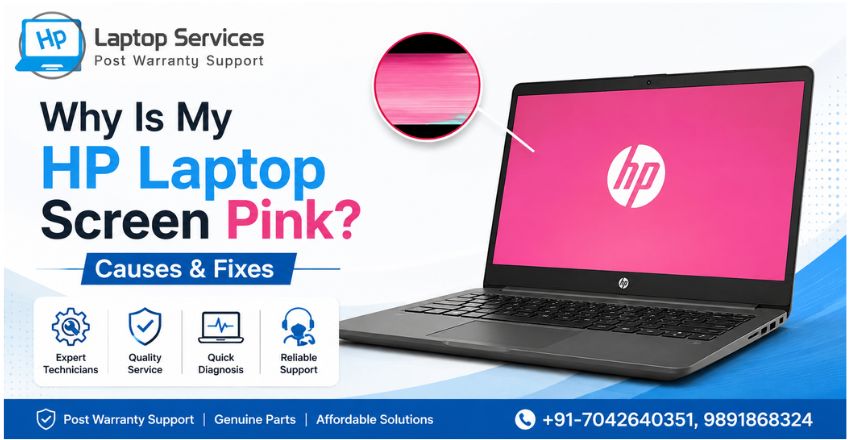
Have you switched on your HP laptop and noticed that everything on the display suddenly looks pink or reddish? A HP laptop screen pink problem can be worrying, particularly when the laptop itself is running normally. In some cases, the issue is caused by a graphics driver or display setting. In others, it may point to a loose display connection, damaged LCD panel, or graphics hardware problem.
HP's own troubleshooting guidance confirms that display problems can be related to graphics drivers, BIOS, display hardware, or internal video-cable issues.
The good news is that a pink display does not automatically mean you need to replace the screen. The important thing is to identify whether the problem is coming from Windows and the graphics system or from the physical display hardware.
Why Is My HP Laptop Screen Pink?
A pink or reddish tint generally means that the display is not reproducing colours correctly. The cause can be as simple as an incorrect colour setting or outdated graphics driver, or as serious as a damaged LCD panel.
Common possibilities include:
- Graphics driver problems
- Loose or damaged display cable
- Faulty LCD panel
- Graphics hardware issues
- Incorrect display or colour settings
- Physical screen damage
- Liquid damage
- BIOS or firmware-related display problems
HP notes that damaged displays can show unusual colours, lines, patterns, or patches, while a loose internal video cable or graphics-system failure can also cause display abnormalities.
1. Check Whether the Pink Tint Appears Everywhere
Before changing drivers or opening the laptop, observe when the pink colour appears.
Does the HP laptop display pink colour:
- Immediately after turning on the laptop?
- Only after Windows loads?
- Only inside certain applications?
- When you move the laptop lid?
- After waking the laptop from sleep?
- During games or graphic-intensive work?
This information can help narrow down the cause.
If the pink colour is visible even during the HP logo or BIOS screen, a hardware-related problem becomes more likely. If the display looks normal during startup but turns pink after Windows loads, software, drivers, or display settings deserve closer attention.
2. Restart the Laptop
It sounds simple, but restarting is worth trying before moving on to more complicated troubleshooting.
A temporary graphics-system glitch can sometimes make the display appear incorrectly. Save your work, shut down the laptop, wait a few seconds, and start it again.
If the screen returns to normal and the issue never comes back, it may have been a temporary software problem.
However, if the HP laptop screen turning pink happens repeatedly, restarting alone is not a solution. You need to identify the underlying cause.
3. Check the Graphics Driver
An outdated, corrupted, or incompatible graphics driver can cause display problems. HP recommends keeping graphics drivers updated when troubleshooting display issues. Its support documentation also recommends using HP Support Assistant or Windows Update to obtain appropriate driver updates.
You can check for updates through:
Settings ? Windows Update ? Advanced options ? Optional updates
You can also use HP Support Assistant to look for drivers and BIOS updates suitable for your particular HP laptop.
Avoid downloading random graphics drivers from unofficial websites. The correct driver depends on the exact laptop model and graphics hardware.
4. Check Display Settings
Sometimes a colour-related setting can make the screen look unusual.
Open Windows display settings and review features such as:
- Night light
- Colour profiles
- HDR
- Display resolution
- Accessibility colour filters
If a colour filter has accidentally been enabled, the display may look noticeably different from normal.
Windows also provides a display-colour calibration utility. HP explains that display calibration can be used to adjust colour, brightness, tone, contrast, and related settings.
If you recently changed display settings, try returning them to their recommended/default configuration.
5. Test the Laptop With an External Monitor
This is one of the most useful checks when dealing with an HP laptop pink screen.
Connect your HP laptop to an external monitor or TV using an appropriate HDMI, DisplayPort, or USB-C connection, depending on your model.
Then compare the two displays.
If the external monitor looks normal
If the external display has normal colours while the laptop's built-in screen remains pink, the problem may be related to the laptop display assembly, display cable, or LCD panel.
HP uses external-display testing as part of its screen troubleshooting process to help distinguish between notebook display problems and graphics-related issues.
If both screens appear pink
If the external monitor also shows the same colour problem, the graphics driver, graphics hardware, Windows configuration, or another system-level problem becomes more likely.
This test does not provide a final diagnosis, but it is a useful way to narrow down the possibilities.
6. Check the Display Cable
The internal display cable connects the laptop's motherboard or graphics system to the LCD panel. If the cable becomes loose, damaged, or worn, the display can develop colour problems, flickering, lines, or intermittent image issues.
One useful clue is whether the colour changes when you gently adjust the laptop lid angle.
For example, if the screen looks normal at one angle but turns pink at another, the display cable or its connection may require inspection.
Do not repeatedly bend or force the screen to test it. The internal cable and connectors are delicate, and further movement could make the problem worse.
HP specifically notes that a loose internal video cable can contribute to certain display problems.
7. Look for Physical Screen Damage
Inspect the screen carefully for:
- Cracks
- Black spots
- Coloured patches
- Lines
- Flickering areas
- Pressure marks
- Liquid marks
A damaged LCD panel can produce unusual colours or patches. HP notes that liquid entering a display can cause discoloured areas, while physical panel damage can result in visible lines, patterns, or other abnormalities.
If the laptop was recently dropped, squeezed inside a bag, exposed to moisture, or subjected to pressure, physical display damage should be considered.
8. Check Whether the Problem Started After an Update
Think about what changed immediately before the HP laptop pink screen problem appeared.
For example:
- Did Windows recently update?
- Did you install a graphics driver?
- Did you update BIOS?
- Did you install new graphics software?
- Did you connect an external display?
- Did the laptop experience a fall or impact?
If the problem appeared immediately after a graphics-driver update, checking for a newer compatible driver or reverting the problematic driver may be appropriate.
If it started after physical damage, software troubleshooting is unlikely to solve the problem.
9. Run HP Hardware Diagnostics
If software checks do not resolve the issue, HP provides hardware diagnostic tools that can help identify potential hardware failures. HP's support resources include PC Hardware Diagnostics for investigating hardware-related problems.
Running the appropriate diagnostics can help determine whether the laptop has a hardware issue that requires further inspection.
This is particularly useful if the HP laptop display problem is accompanied by:
- Random flickering
- Horizontal or vertical lines
- Frequent black screens
- Display failure
- Unexpected shutdowns
- Graphics-related crashes
When Does an HP Laptop Need Screen Replacement?
A screen replacement may be necessary when the LCD panel itself is physically damaged or has developed a hardware fault.
However, replacing the display should not be the first step simply because the screen appears pink.
A technician should first determine whether the problem is caused by:
- Display settings
- Graphics drivers
- BIOS
- Internal display cable
- LCD panel
- Graphics hardware
- Motherboard-related circuitry
HP advises against attempting screen repair or replacement yourself because improper handling can cause additional damage and may affect warranty options.
When Should You Contact an HP Laptop Service Centre?
If the HP laptop screen has a pink tint and basic troubleshooting does not resolve it, professional inspection is a sensible next step.
You should especially consider professional service when:
- The screen remains pink after restarting.
- An external monitor works but the laptop screen does not.
- The colour changes when the lid moves.
- The screen has visible physical damage.
- The laptop was exposed to liquid.
- Graphics drivers are already updated.
- Hardware diagnostics report an error.
- The problem keeps returning.
A technician can inspect the LCD panel, display cable, connectors, graphics hardware, and motherboard circuitry to determine which component is actually responsible.
HP Laptop Service Centres
If your HP laptop pink screen problem continues after basic troubleshooting, our HP Laptop Service Centres provide reliable out-of-warranty laptop repair services at your doorstep. Our experienced technicians diagnose display, cable, graphics, and other hardware issues before recommending the right repair solution. We aim to deliver quality laptop repair at an affordable price, saving you the hassle of visiting a service centre.
For doorstep service assistance, contact: +91-7042640351 | 9891868324
Get convenient, professional, and affordable out-of-warranty HP laptop repair service at your doorstep.
Final Thoughts
A HP laptop screen pink problem can come from several different sources, so replacing the LCD immediately is not always the right answer. Start with simple checks such as restarting the laptop, reviewing display settings, updating the graphics driver, and testing an external monitor.
If the HP laptop screen turning pink continues, especially when accompanied by flickering, lines, physical damage, or changes when the lid moves, the display cable or LCD panel may need professional inspection.
The most effective approach is to diagnose the cause first and replace a component only when testing confirms that it is actually faulty. This can save money and prevent unnecessary repairs while getting your HP laptop display back to normal.
Frequently Asked Questions
1. Can a pink screen on an HP laptop be caused by a faulty HDMI cable?
Yes. If you are using an external monitor, a damaged or poor-quality HDMI/DisplayPort cable can cause unusual colours or display distortion. Try another compatible cable to rule out the connection.
2. Why does my HP laptop screen turn pink only when the battery is low?
If the pink tint appears specifically at low battery levels, check power-management settings, graphics drivers, and whether the issue disappears when the charger is connected. A persistent problem may require further diagnosis.
3. Can a pink screen be caused by a recently installed Windows application?
It is possible if the application interacts with graphics settings, display drivers, or hardware acceleration. If the problem started immediately after installing a particular application, uninstalling it temporarily can help determine whether there is a connection.
4. Why is only one side of my HP laptop screen pink?
A pink area limited to one portion of the display can indicate a localized panel problem, pressure damage, pixel-related fault, or an internal display connection issue. Professional inspection may be necessary if the affected area remains unchanged.
5. Can a faulty laptop hinge cause a pink screen?
A damaged hinge itself does not normally change screen colours, but hinge damage can affect or put pressure on the internal display cable. If the colour changes when opening or closing the lid, the display connection should be inspected.
References
- https://support.hp.com/in-en/document/ish_4158852-3236832-16
- https://support.hp.com/in-en/document/ish_7096250-7096363-16
- https://support.hp.com/in-en/help/hp-pc-hardware-diagnostics
- https://support.hp.com/us-en/document/ish_6885024-6885081-16
Author Bio
Hi, I'm Pooja, a technical content writer passionate about creating informative and easy-to-understand content on laptop repair, troubleshooting, and technology. I specialize in simplifying complex technical topics into practical guides that help users diagnose and resolve common laptop problems with confidence. Through the HP Laptop Service Centres blog, I share well-researched articles, maintenance tips, and repair insights based on trusted technical resources and real-world industry knowledge. My aim is to deliver accurate, helpful, and user-focused content that empowers readers to make informed decisions about maintaining and repairing their HP laptops.
Recent Post
-
Why Is My HP Laptop Screen Pink? Causes & Fixes
14 Aug 2026
-
How to Fix HP Laptop White Screen Issue
07 Aug 2026
-
Why Is Your HP Laptop Plugged In Not Charging?
03 Aug 2026
-
-
-
-
-

-
-

-

-

-
-
-

Looking For A Fast & Reliable Laptop Repair Service
We have professional technicians, fast turnaround times and affordable rates. Book Your Repair Job Today!
We specialize in all types of laptop services and provide reliable and quality door step service to our clients